
What Global EQ does
Global EQ shapes the physical outputs after preset processing. Use it to adjust the overall response for a venue’s PA, monitor speakers, or rehearsal room. It is stored on the device and remains active across preset changes. It also affects the looper, drums and click on OUT 1/2. The FX Loop send branches off before this EQ.
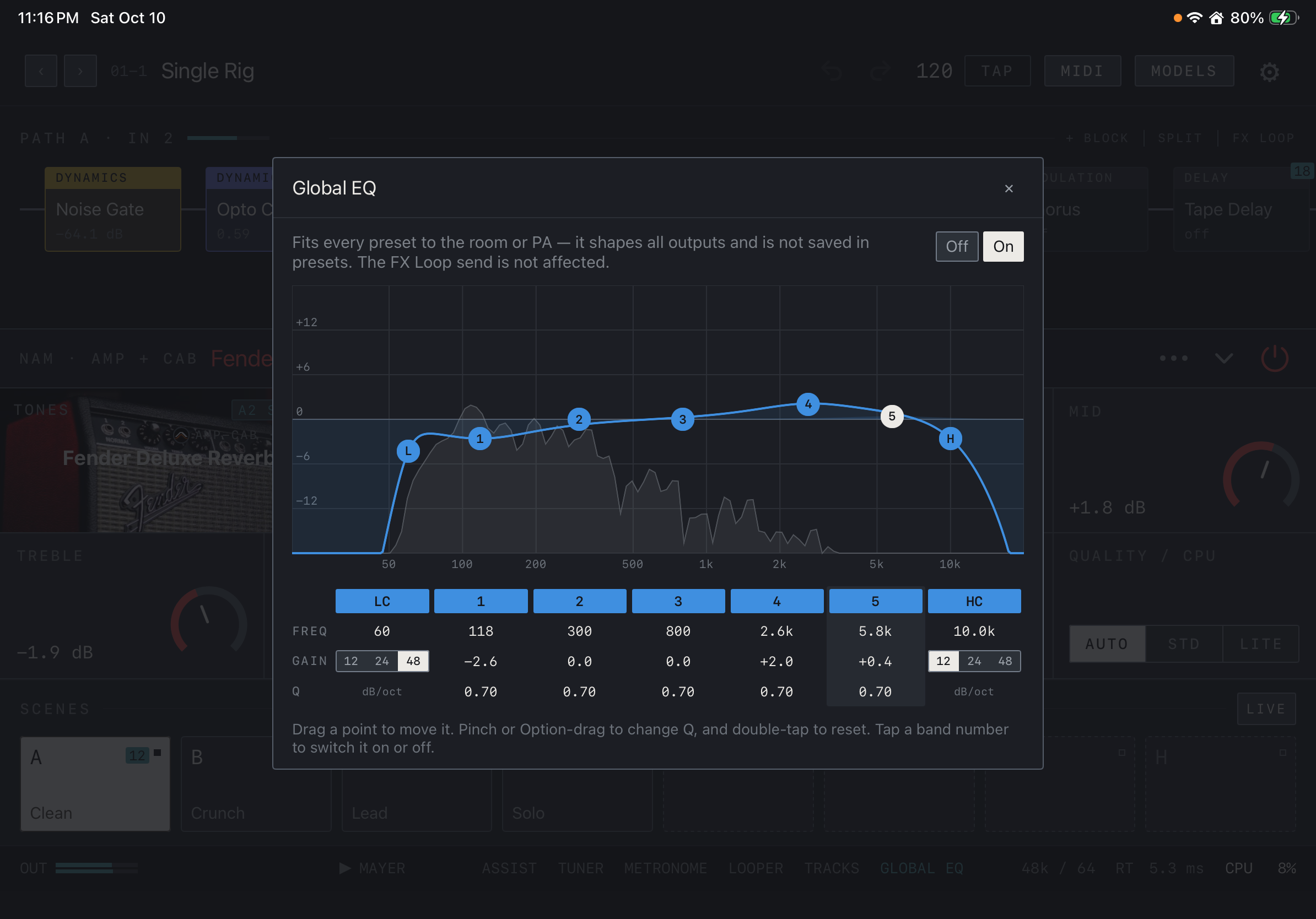
Find it on screen
- As the text at the top says, Global EQ shapes all outputs and is not saved in presets.
- Switch it with Off / On at the top right. It is On in this example.
- Drag the L, 1–5 and H points on the curve to change frequency and gain. The white point is the selected band.
- The grey area behind the curve is the spectrum of the sound going out.
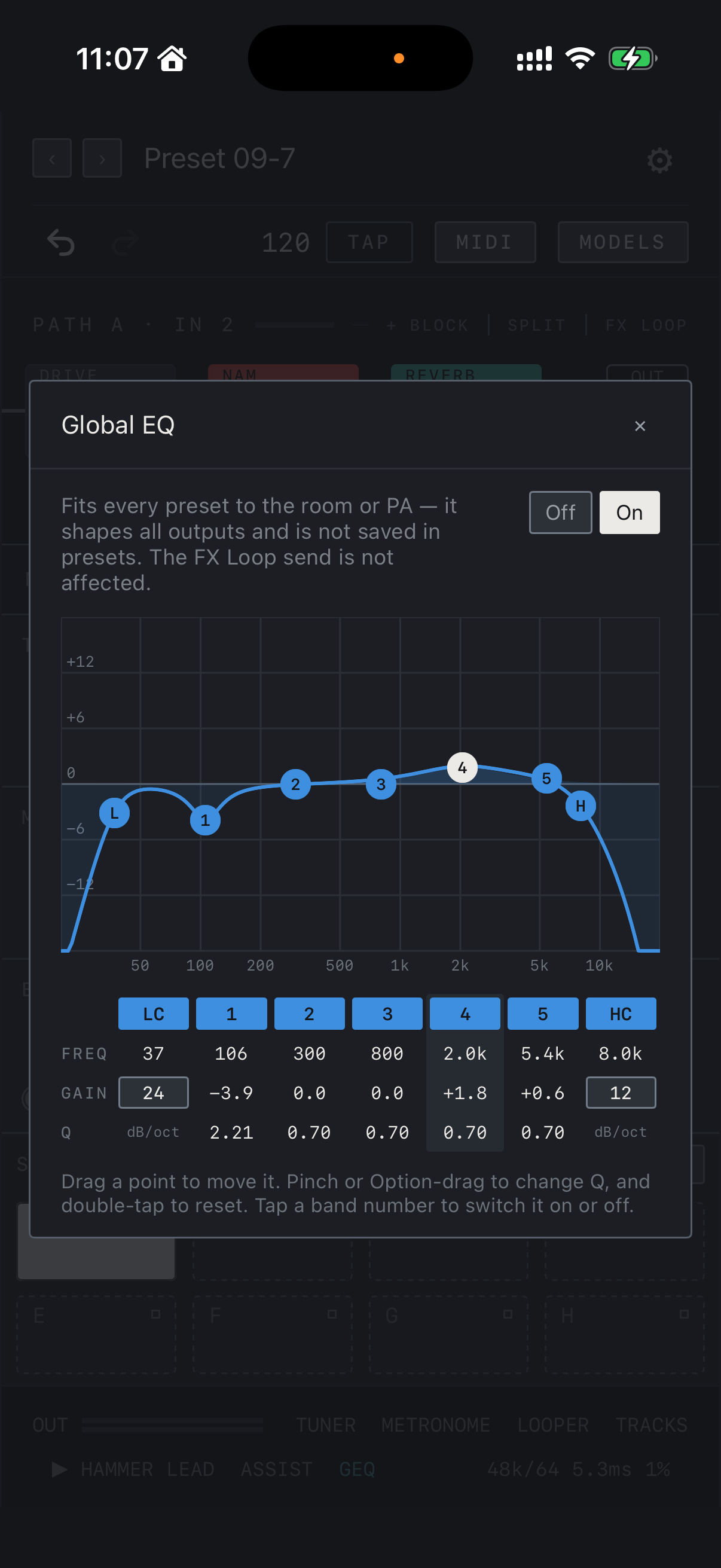
Find it on screen
- As the text at the top says, Global EQ shapes all outputs and is not saved in presets.
- Switch it with Off / On at the top right. It is On in this example.
- Drag the L, 1–5 and H points on the curve to change frequency and gain. The white point is the selected band.
- The grey area behind the curve is the spectrum of the sound going out.
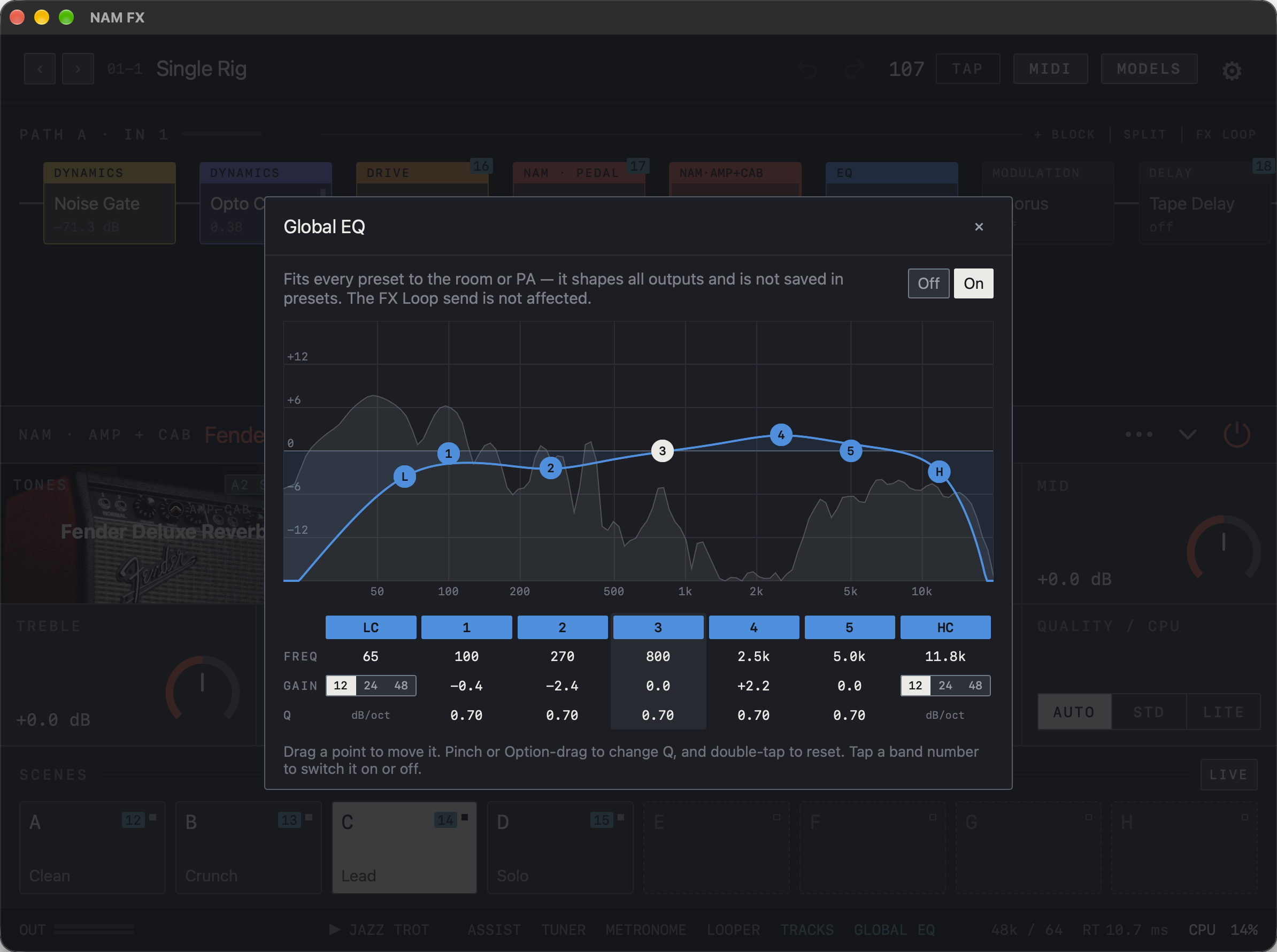
Find it on screen
- As the text at the top says, Global EQ shapes all outputs and is not saved in presets.
- Switch it with Off / On at the top right. It is On in this example.
- Drag the L, 1–5 and H points on the curve to change frequency and gain. The white point is the selected band.
- The grey area behind the curve is the spectrum of the sound going out.
Shape the curve
- Tap On in the GLOBAL EQ window.
- Drag a point on the curve: horizontal is frequency, vertical is gain. 1–5 are bell bands; L and H are the low cut and high cut.
- Pinch (Option-drag on Mac) to change the Q of the selected band, and double-tap a point to reset it.
- Tap LC, 1–5 or HC in the table below to switch that band on or off. Drag the FREQ, GAIN and Q numbers up or down for fine adjustment.
- LC and HC offer slopes of 12, 24 or 48 dB/oct.
Mac On Mac, hold Option and drag to change Q in place of the pinch.

Find it on screen
- The table lists FREQ, GAIN and Q per band. Tap LC, 1–5 or HC to switch that band on or off.
- In the GAIN row, LC and HC hold the slopes 12, 24 and 48 dB/oct; the highlighted number is the chosen one.
- The column set apart by a darker background is the selected band.
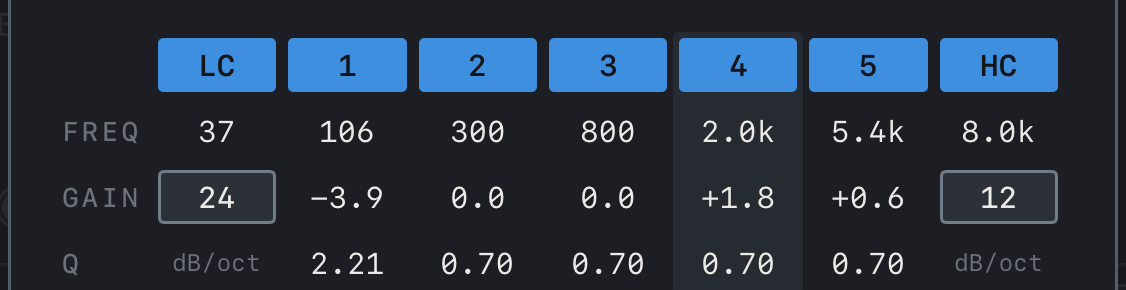
Find it on screen
- The table lists FREQ, GAIN and Q per band. Tap LC, 1–5 or HC to switch that band on or off.
- On iPhone the LC and HC slopes are shown as a single value each (24 and 12 dB/oct here).
- The column set apart by a darker background is the selected band.

Find it on screen
- The table lists FREQ, GAIN and Q per band. Tap LC, 1–5 or HC to switch that band on or off.
- In the GAIN row, LC and HC hold the slopes 12, 24 and 48 dB/oct; the highlighted number is the chosen one.
- The column set apart by a darker background is the selected band.
When to use it
Use Low Cut to reduce low-end buildup in a boomy room. Apply a small bell cut to a frequency range that sounds harsh through the PA. For tone shaping that should travel with a preset, use an EQ block in the chain.
Caution Global EQ affects every preset. Recheck your settings when you change venues or monitors.