Buffer size
In Settings, you can request a buffer of 32, 64, 128, 256, or 512 frames. A smaller buffer reduces round-trip latency and gives the device less time to process each block of audio. Start at 128 frames and try 64 or 32 if you need a faster response. If you hear dropouts or clicks, increase the buffer and try LITE under QUALITY / CPU on compatible NAM blocks.
Find it on screen
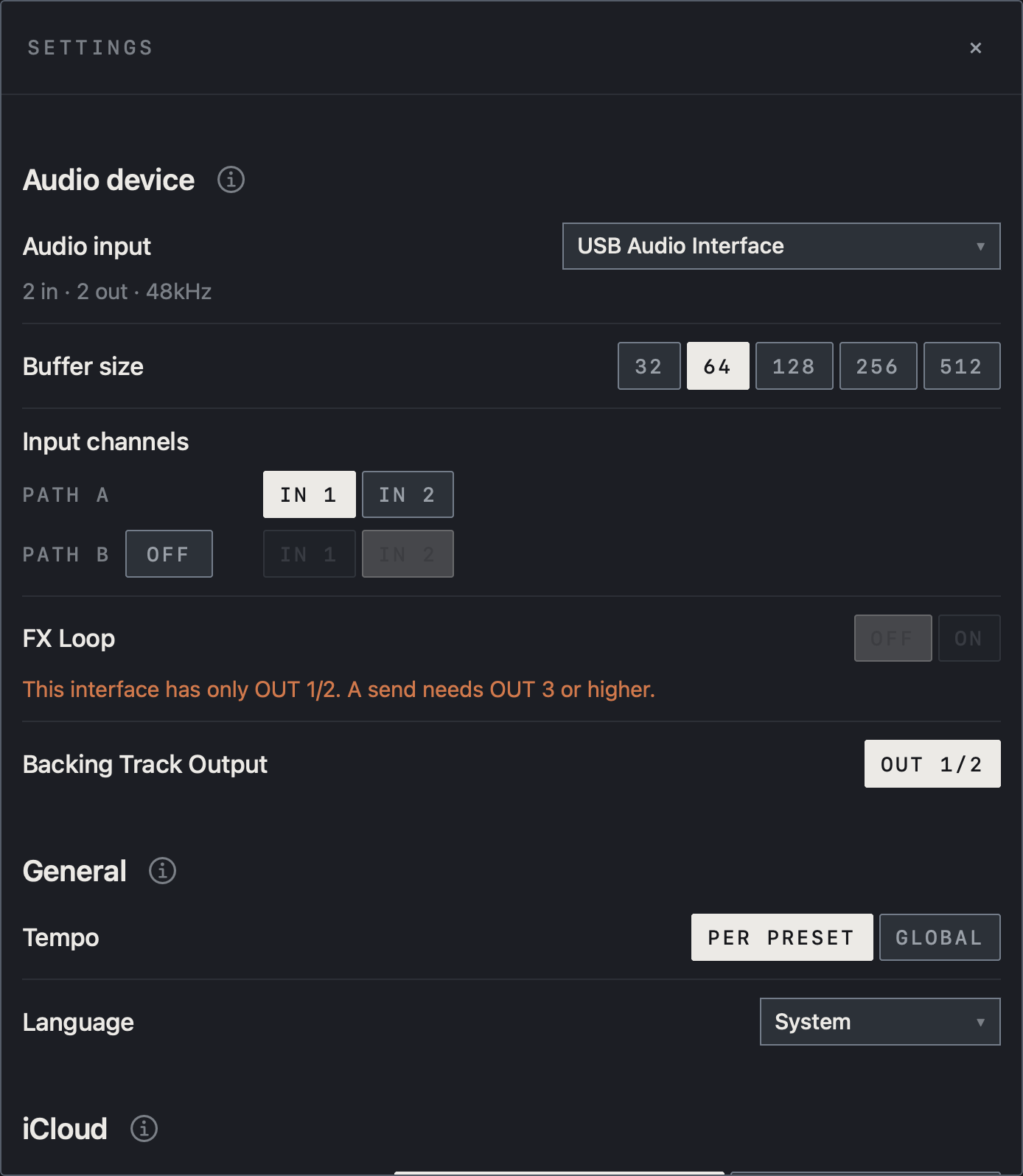
- Choose 32 / 64 / 128 / 256 / 512 under Buffer size. This example uses 64.
- If a small buffer causes dropouts, raise it and compare with the same rig.
Find it on screen
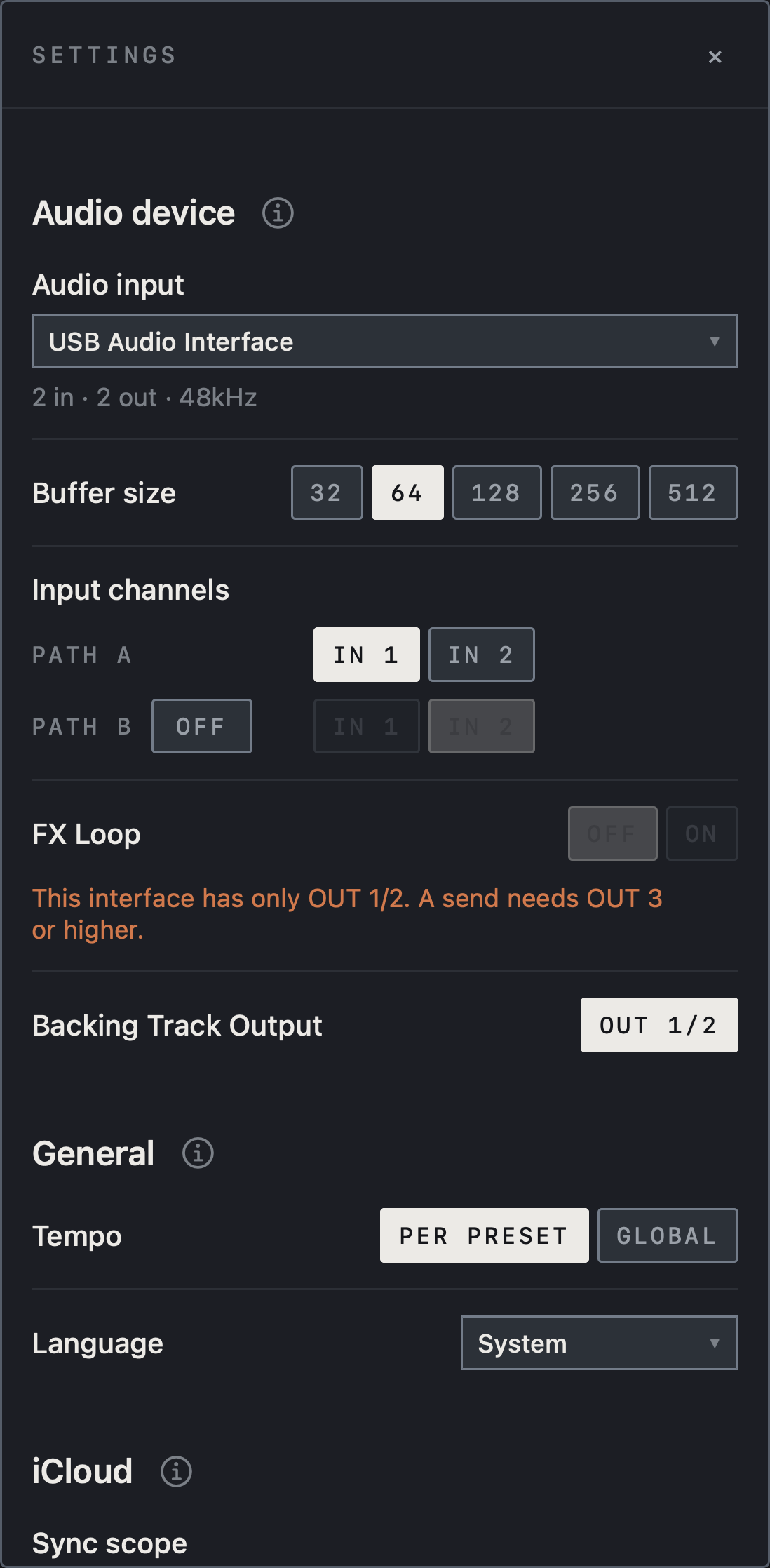
- Choose 32 / 64 / 128 / 256 / 512 under Buffer size. This example uses 64.
- If a small buffer causes dropouts, raise it and compare with the same rig.
Find it on screen
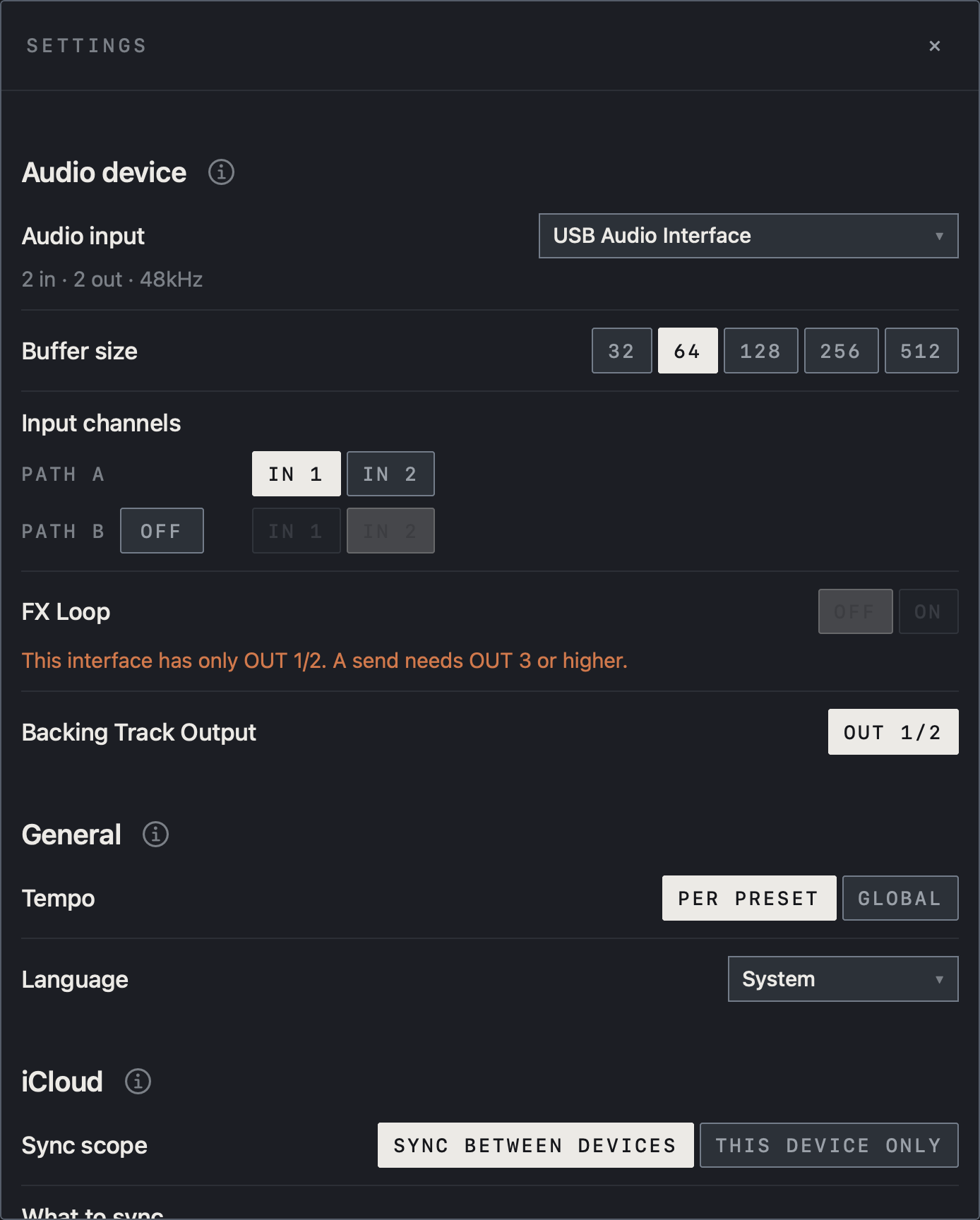
- Choose 32 / 64 / 128 / 256 / 512 under Buffer size. This example uses 64.
- If a small buffer causes dropouts, raise it and compare with the same rig.
Requested versus actual
The active buffer can differ from the requested value. Check the bottom bar for sample rate, buffer size, and round-trip latency (RT).
Note Actual latency also depends on interface conversion, the operating system, blocks that introduce latency, and the round trip through a hardware FX Loop.
Input channels and outputs
Under Audio input, Settings shows the channel counts and sample rate reported by the device. Under Input channels choose the IN each of PATH A and PATH B listens to, and leave PATH B OFF when you do not use it. FX Loop and Backing Track Output have limited choices on devices with only OUT 1/2. Each Path’s output connectors are chosen at OUT at the end of the chain, not in Settings. Tap the ⓘ beside a section title to unfold explanations of its rows.
Find it on screen
- Below Audio input, the device reports 2 in · 2 out · 48kHz.
- An orange note says FX Loop cannot be turned on because this interface has only OUT 1/2.
- For the same reason, Backing Track Output offers only OUT 1/2.
- Tap the ⓘ beside a section title to unfold its explanations.
Find it on screen
- Below Audio input, the device reports 2 in · 2 out · 48kHz.
- An orange note says FX Loop cannot be turned on because this interface has only OUT 1/2.
- For the same reason, Backing Track Output offers only OUT 1/2.
- Tap the ⓘ beside a section title to unfold its explanations.
Find it on screen
- Below Audio input, the device reports 2 in · 2 out · 48kHz.
- An orange note says FX Loop cannot be turned on because this interface has only OUT 1/2.
- For the same reason, Backing Track Output offers only OUT 1/2.
- Tap the ⓘ beside a section title to unfold its explanations.
Preparing and Resume
Preparation status appears beside PATH A at launch or during device changes. Automatic startup preparation differs from Audio Ready after an interruption that waits for your confirmation.
Caution Audio Ready presents Resume; check the connection and monitor level before resuming.
Without an interface the output is muted, and Continue editing in the notice lets you keep editing without sound. Buffer changes can briefly reconfigure audio.
Long sessions
Caution Rehearse long enough on the actual device, interface and rig to check heat and stability.
Power, hubs, cables and background tasks also matter. Interfaces that report the same channel count can still map headphone outputs differently. Looper buffers are reserved up front, but only what you record uses memory.