The input meter does not move
Check that the interface is connected and selected under Audio Input in Settings. Assign the physical IN you’re plugged into to the appropriate path under Input channels. Enable PATH B first if you use it. If the interface sees signal and the app’s IN meter stays idle, check microphone permission and the input assignment. Stop the demo DI in the bottom bar to return to the physical input.
Find it on screen
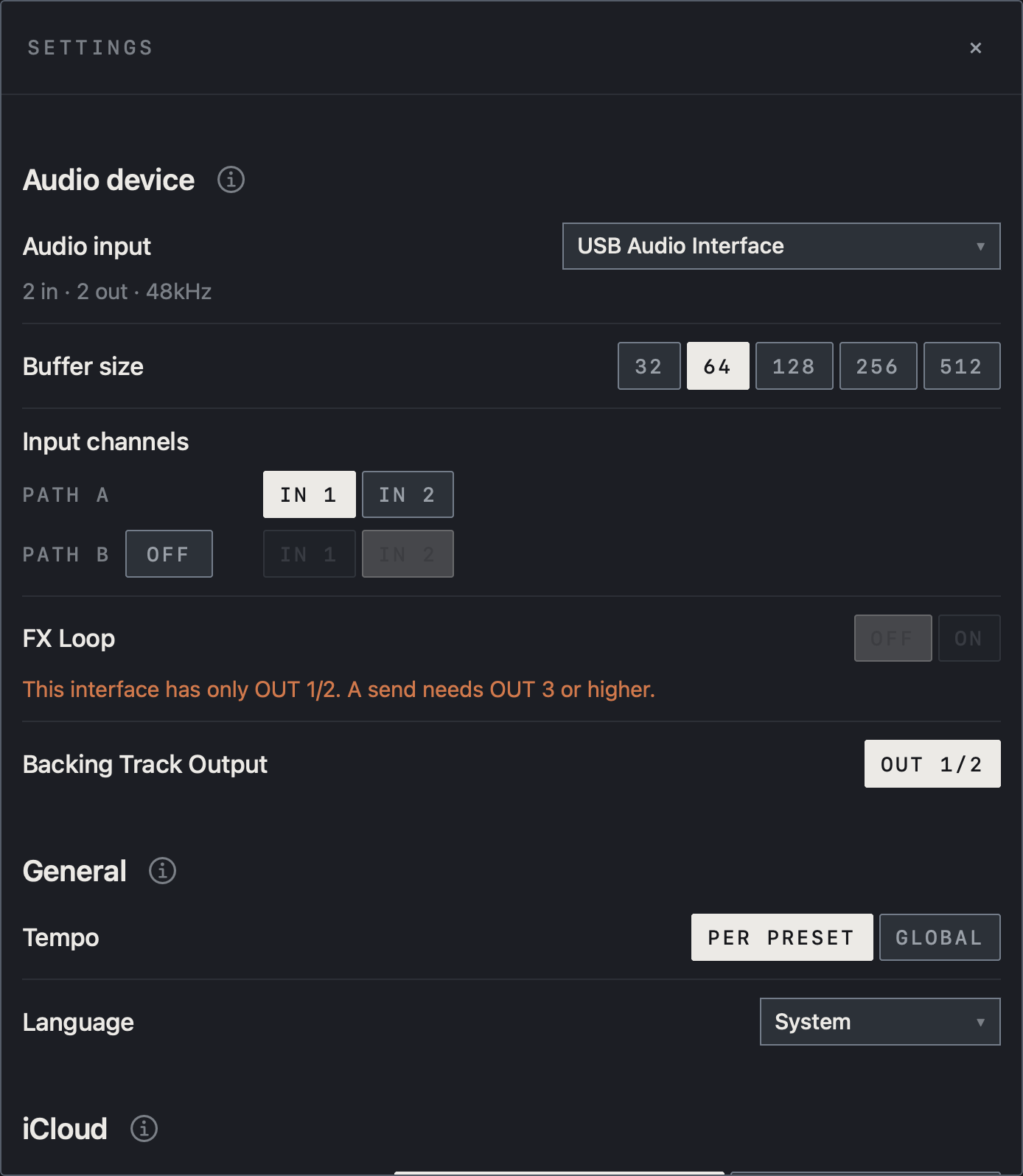
- Check the interface beside Audio input and match PATH A under Input channels to the IN your instrument uses.
- This example selects IN 1. With PATH B OFF, the IN buttons on its row are dimmed.
Find it on screen
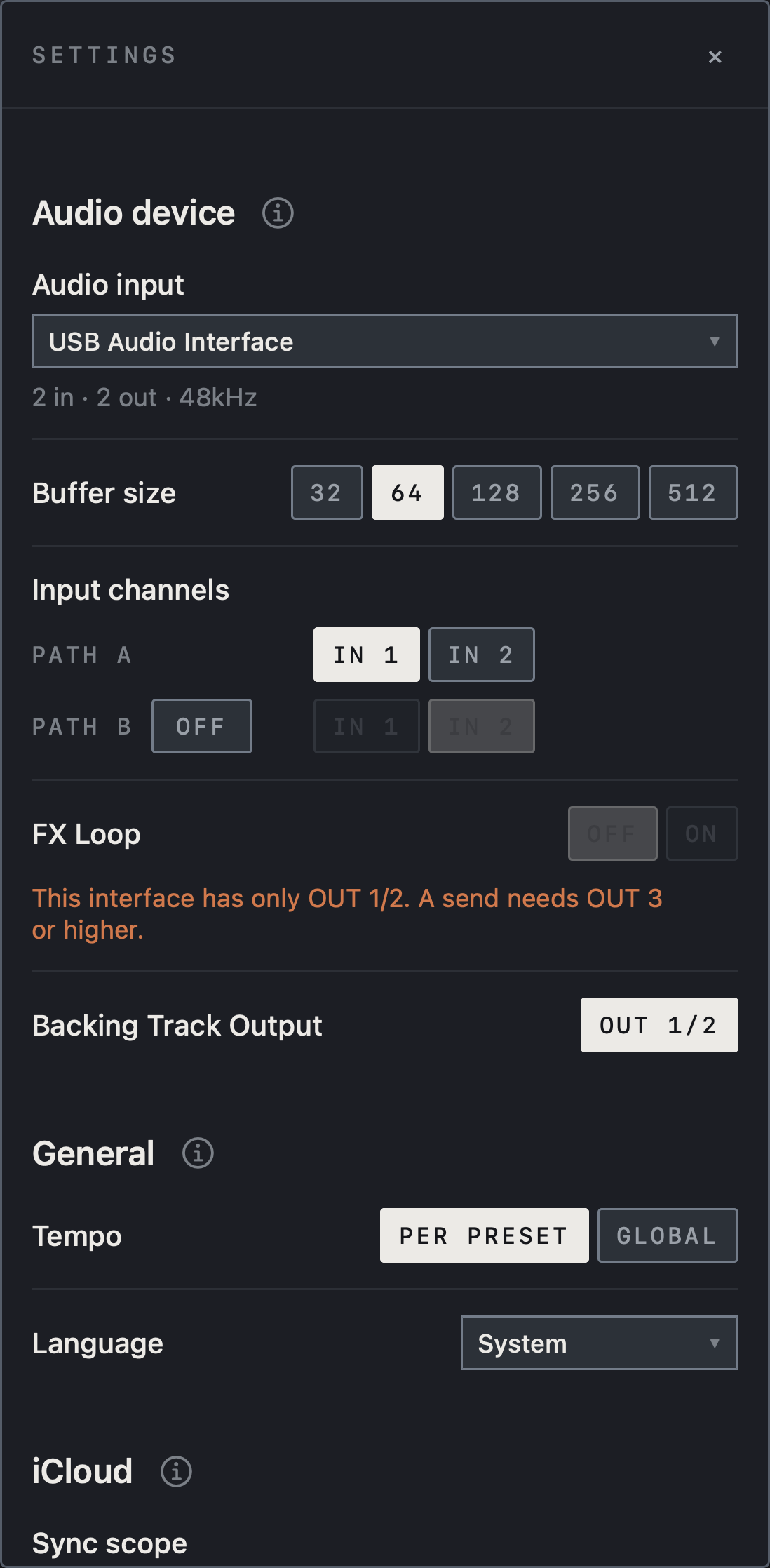
- Check the interface beside Audio input and match PATH A under Input channels to the IN your instrument uses.
- This example selects IN 1. With PATH B OFF, the IN buttons on its row are dimmed.
Find it on screen
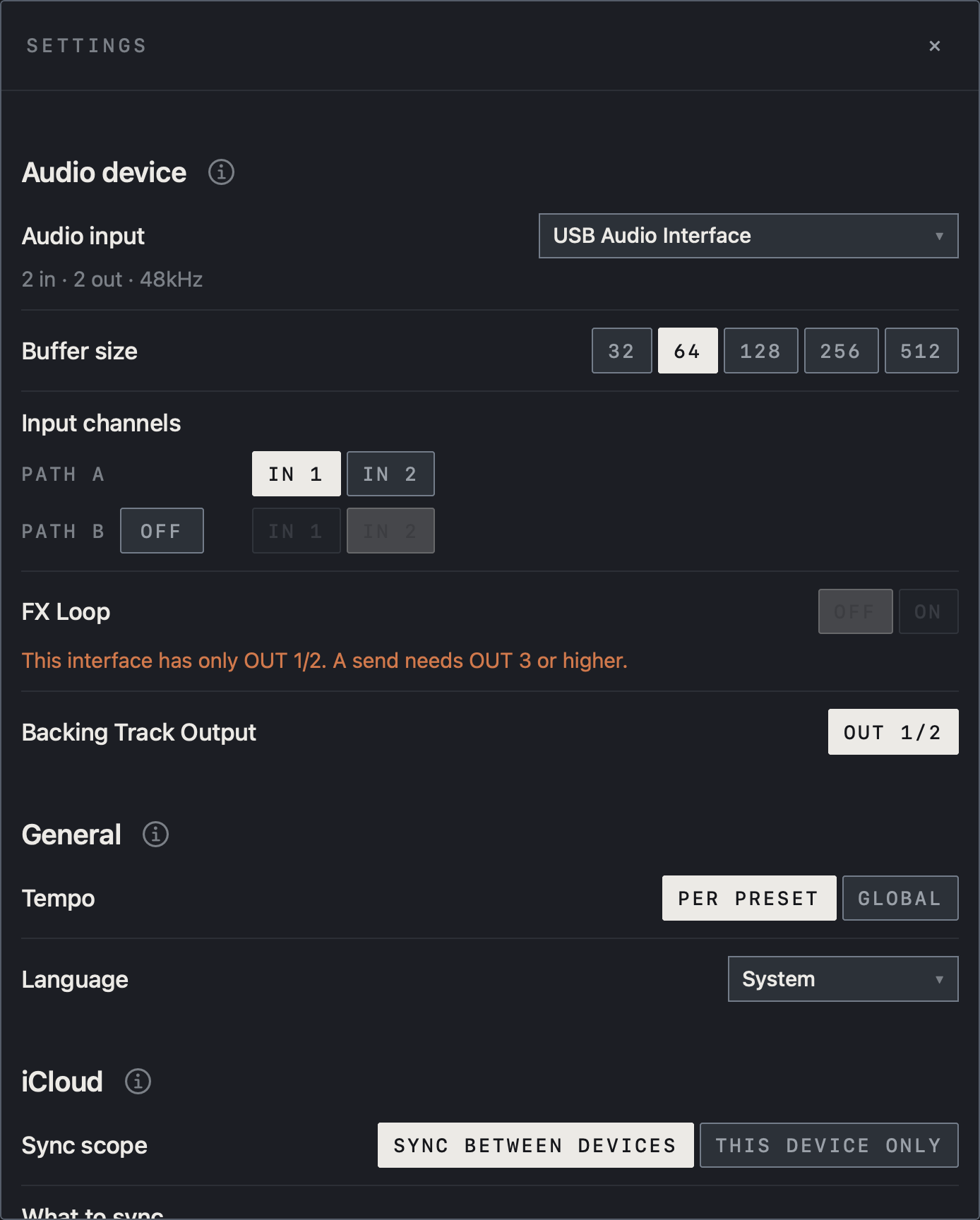
- Check the interface beside Audio input and match PATH A under Input channels to the IN your instrument uses.
- This example selects IN 1. With PATH B OFF, the IN buttons on its row are dimmed.
Meters move, but there is no sound
Check that the hardware outputs selected at the end of the path match the connections to your monitoring system. In the interface’s monitor mixer, bring up the USB playback signal from the app. If only the instrument is silent, check the path’s MUTE, SOLO and LEVEL, and Mute output in the tuner. For Wet / Dry / Wet, check the Dry and Wet L/R hardware assignments too. Check OUT 1/2 for the looper and metronome, or Backing Track Output in Settings for the backing track.
Doubled sound or crackles
If you hear dry and processed signals together, check the interface’s Direct Monitoring setting. If CLIP lights, reduce the level at the first stage that clips. For dropouts, increase the buffer and check interface power, the USB connection and the CPU meter. If a capture sounds muffled or harsh, check for CAB TWICE or no cab. If blending a hardware FX Loop thins the sound, use Re-measure to check delay and polarity again.
A device is missing or recovery stalls
Check the data cable and power, reconnect, and confirm that the device name and channels update in Settings. Tap Resume if requested. On Mac, a device with inputs but no outputs cannot start audio, so choose an interface that has both. If the issue continues, send support your device, OS, app version, interface, buffer and reproduction steps.
Caution Do not send tokens, API keys or tone files you lack permission to share.
Sync does not happen
Check that the device is signed in to iCloud with iCloud Drive on, and that the item is on under iCloud in NAM FX Settings on both devices. Tap SYNC NOW and read the status rows; items shown as still downloading need a moment before you check again. Loops and backing songs are large, take time, and cannot upload when iCloud storage is full. Tones downloaded from TONE3000 move only when both devices are connected to TONE3000.
Pro features are locked
Check that you are signed in with the Apple ID that made the purchase, then tap RESTORE (Restore Purchases) in the Pro window or Settings. If no purchase is found, check whether you bought it with a different Apple ID. If the AUv3 plug-in is locked, open the NAM FX app, unlock there, then load the plug-in again in the host.
Note Even with Pro, the FX Loop can only be turned on with an interface that has OUT 3 or higher.