This device only, and Device Sync
This Device Only keeps a separate iCloud copy for each device. Device Sync (Pro) shares the selected categories across devices signed in to the same iCloud account. TONES covers captures, IRs, photos, and list order. PRESETS covers presets, banks, favorites, and setlists. MIDI covers controller assignments. LOOPER syncs saved loops, and MR syncs backing tracks and scene cues.
Note Loop and backing-track audio files use iCloud storage.
Caution Deleting synced content updates the iCloud copy. Use a separate backup if you need to restore an earlier state.
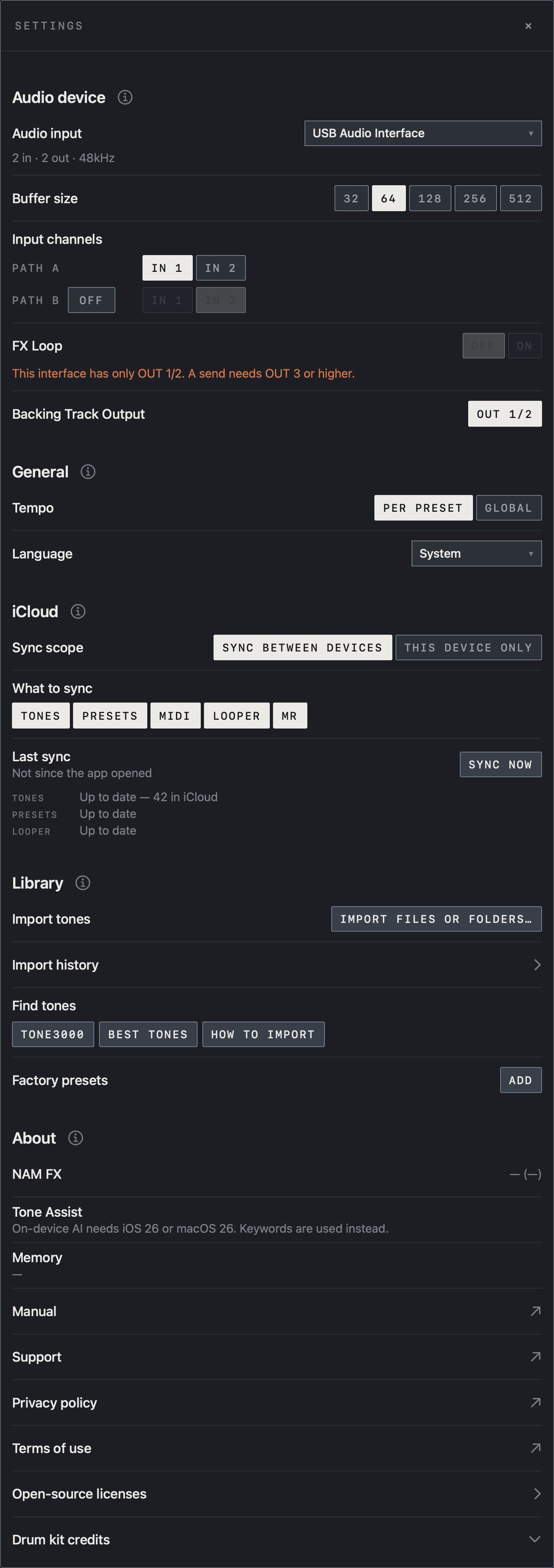
Find it on screen
- Sync scope at the top is where Pro chooses between SYNC BETWEEN DEVICES and THIS DEVICE ONLY. This example uses SYNC BETWEEN DEVICES.
- What to sync has five items: TONES, PRESETS, MIDI, LOOPER and MR. Highlighted items are on.
- The ⓘ beside iCloud unfolds an explanation of the sync rules.
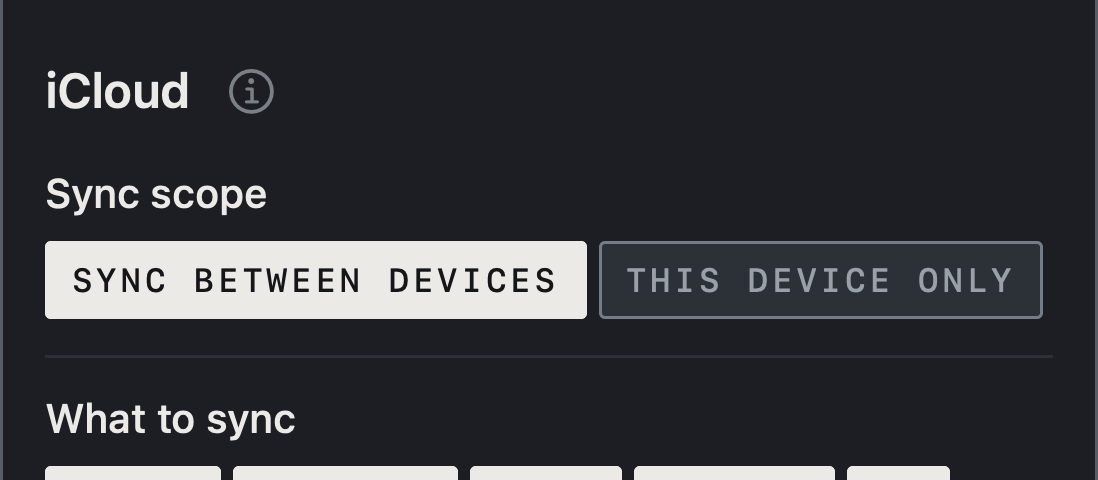
Find it on screen
- Sync scope at the top is where Pro chooses between SYNC BETWEEN DEVICES and THIS DEVICE ONLY. This example uses SYNC BETWEEN DEVICES.
- What to sync has five items: TONES, PRESETS, MIDI, LOOPER and MR. Highlighted items are on.
- The ⓘ beside iCloud unfolds an explanation of the sync rules.
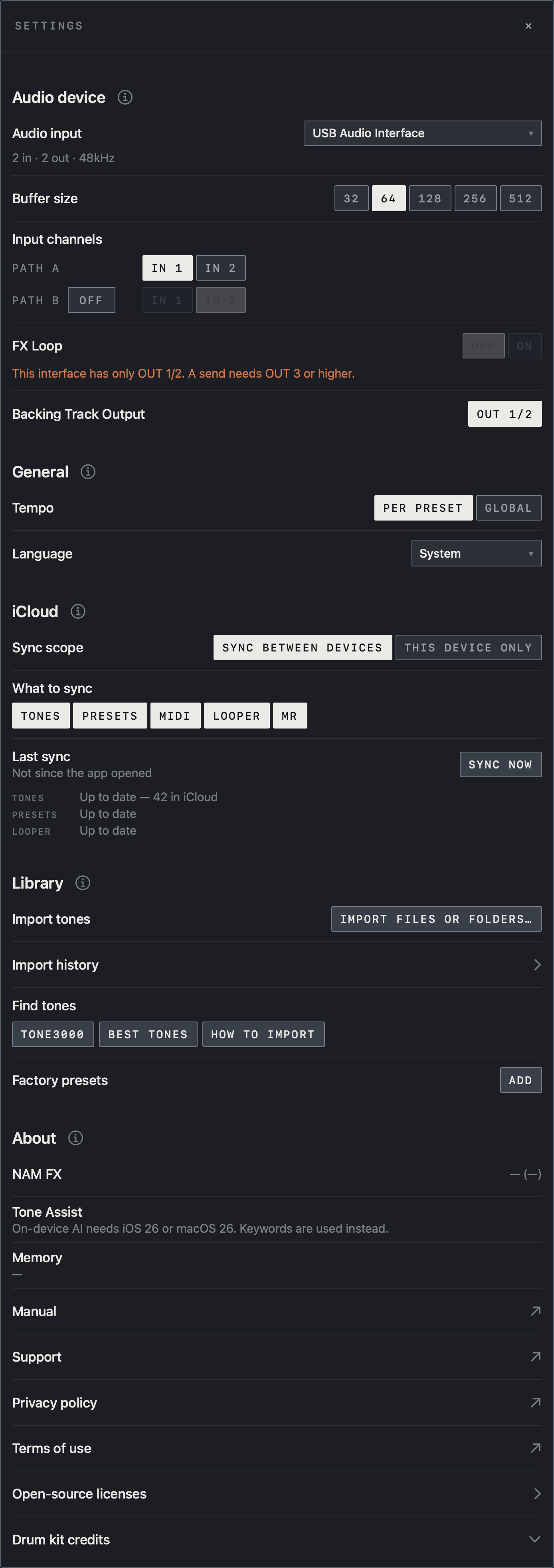
Find it on screen
- Sync scope at the top is where Pro chooses between SYNC BETWEEN DEVICES and THIS DEVICE ONLY. This example uses SYNC BETWEEN DEVICES.
- What to sync has five items: TONES, PRESETS, MIDI, LOOPER and MR. Highlighted items are on.
- The ⓘ beside iCloud unfolds an explanation of the sync rules.
Turn it on and sync
- Sign in to iCloud on the device and turn on iCloud Drive.
- Under iCloud in NAM FX Settings, tap the items you want to sync. Items you turn off are neither sent nor received on this device.
- Check that the status rows under the items read Up to date, and tap SYNC NOW to sync at once.
Find it on screen
This item is shown on iPad.
- SYNC NOW at the right of Last sync syncs at once.
- The rows below show the status of each kind. Up to date means nothing is waiting to be sent or received.
Find it on screen
- SYNC NOW at the right of Last sync syncs at once.
- The rows below show the status of each kind. Up to date means nothing is waiting to be sent or received.
Reinstalling, or moving to a new device
When you reinstall the app on the same device, what was in iCloud comes back on first launch. On a new device of the same kind, the first launch also brings in, once, the content of the device of that kind that synced most recently: an iPhone takes over from an iPhone, an iPad from an iPad and a Mac from a Mac.
Note Taking over happens once. After that the new device syncs only its own content with iCloud.
Caution A lot of content takes time to download from iCloud. After the first launch, wait until the status rows in Settings read Up to date.
Audio device, buffer, input channel and output connectors depend on the interface, so check them again on the new device. Pro unlocks when you tap RESTORE with the same Apple ID.
Device Sync (Pro)
After buying Pro, choose between Device Sync and This device only at the top of iCloud in Settings. Device Sync is the default. Changing to Device Sync deletes nothing: what is only on this device goes to the others, what is only on another device comes here, and presets that differ are kept as both. On your other devices, tap RESTORE with the same Apple ID to unlock Pro and turn the same items on.
Caution Once sync has started, deleting something on one device deletes it on the others.
For a device that must not pick up changes from elsewhere, such as a stage device, choose This device only or turn that item off. If two devices edit the same preset, the newer edit wins.
Caution After an important change on your stage device, confirm that sync has finished before opening the preset elsewhere.
Backup and restore
iCloud sync keeps the current state, so something deleted by mistake is deleted everywhere it syncs. To go back to an earlier state, make a backup. Backups do not need Pro.
- Open Backup & Restore under iCloud in Settings.
- Under NEW BACKUP, choose what to include: presets, banks and setlists; tones, IRs and photos; the MIDI pedalboard; saved loops; backing tracks; Global EQ. Only items that exist on this device can be chosen.
- BACK UP TO ICLOUD stores one copy in iCloud. EXPORT TO A FILE opens a save dialog so you can keep the backup file in Files or any other storage.
Note App settings (language, buffer, input and output assignment) and factory presets you have not changed are not included.
To restore, tap RESTORE on a backup in iCloud or choose a backup file with Restore from a file, choose what to bring back, then tap RESTORE SELECTED. Items that are not in the backup cannot be chosen. Restoring adds what is in the backup to what you have now. Nothing is deleted or overwritten: a preset edited since the backup is kept, and the backup's version is added next to it.
Caution The MIDI pedalboard and Global EQ are single settings, so they are replaced with the backup's.
Caution On a device that uses Device Sync, what you restore also appears on your other devices. To keep it on this device, switch to This device only before restoring.
A backup file can also be opened in NAM FX on another device.
Note Many loops, backing tracks and tone files make a large backup that uses that much iCloud storage. The backup list shows each size.
The tone folder and TONE3000 tones
On a device that uses Device Sync with TONES on, putting .nam and IR files in iCloud Drive › NAM FX › Tones in Files or Finder is enough to import them on every device. A device that syncs on its own does not watch that folder.
Caution Tones downloaded from TONE3000 go to iCloud only on devices where TONE3000 is connected, and disconnecting removes those iCloud copies.
Sign in to TONE3000 separately on each device.
Caution Do not use iCloud to share downloaded tones with other users.
Caution Before a show, confirm that the rig is ready without a network.