Tuner and tempo
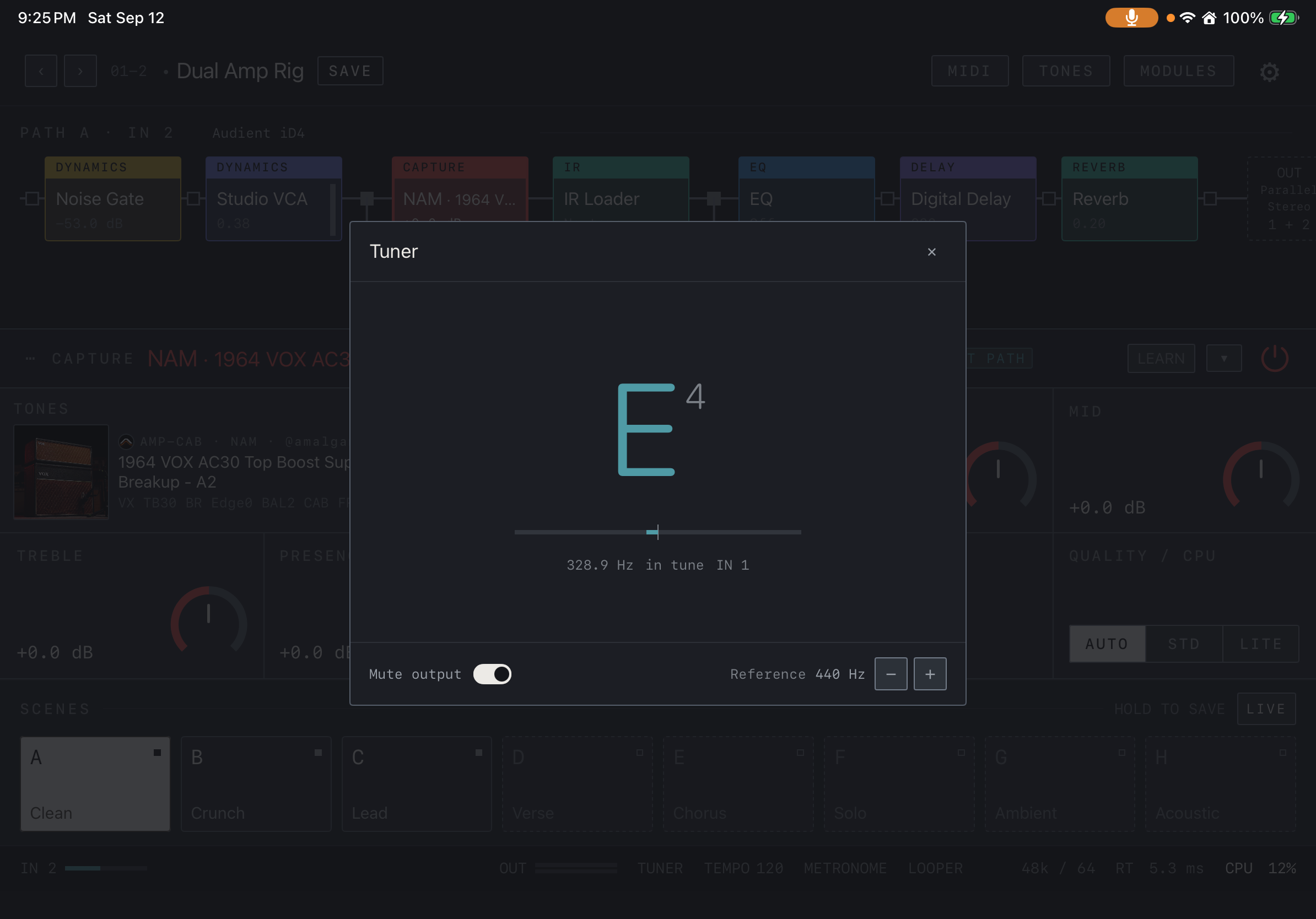
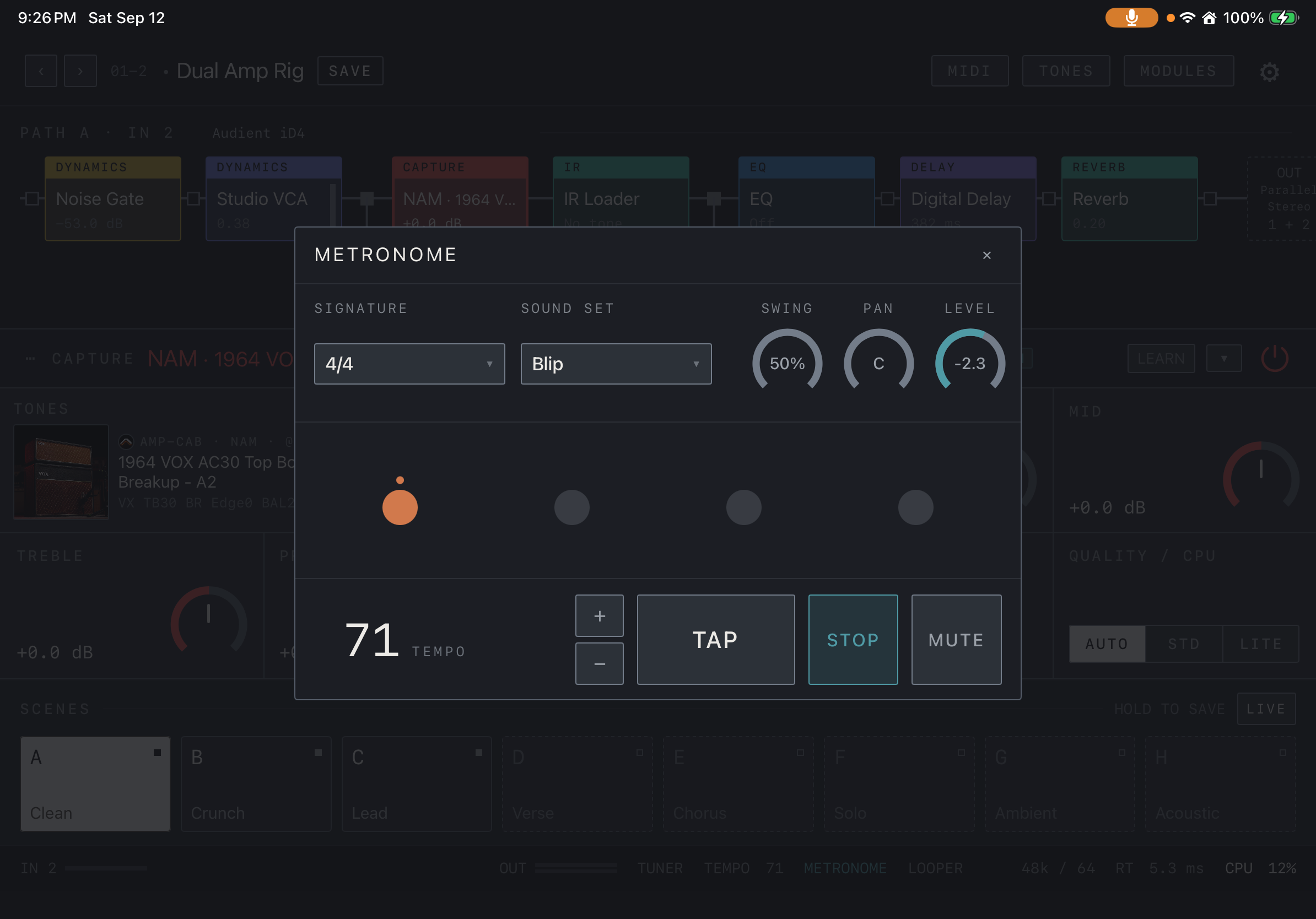
Open TUNER and play one string at a time. Set BPM in TEMPO and start METRONOME. On a supported delay or modulation effect, select a note division in Sync to follow the current tempo.
Find it on screen
- Read the note, octave and pitch scale in the center.
- Play one note at a time and set Mute output and the reference pitch as needed.
Drums and metronome
Choose a pattern, kit, tempo and level in the rhythm screen. Swing is available for supported patterns. Balance your instrument against the rhythm and check OUT 1/2. Sample credits and licenses are in Settings → Drum Kits.
Find it on screen
- Set TEMPO and meter, then start the click with the play control.
- Balance the click level against your instrument.
Record and layer
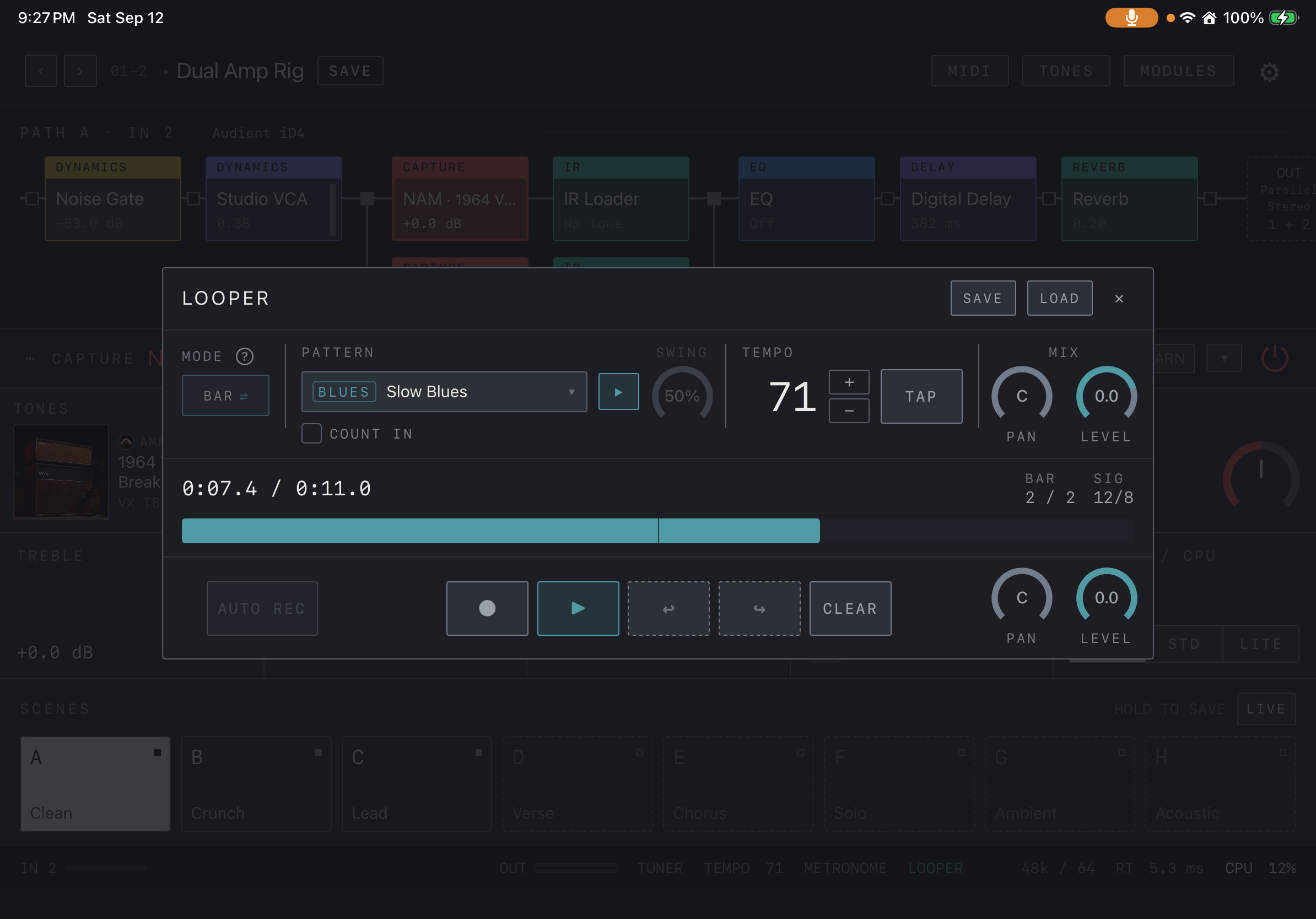
In LOOPER, check the tempo, bar count and track before recording. Record the first loop and overdub additional parts during playback. Track level and mute apply to individual tracks. The main play and stop controls apply to all tracks. Save any loops you want to keep before closing the app.
Find it on screen
- Find the round record button, triangular play button and Undo/Redo controls below. The play button above controls the rhythm accompaniment.
- Use FREE for a free-length loop or SYNC to follow the tempo. Choose the mode before recording your first loop.
Save and load
Stop before saving a loop. Load it again from the saved-loop list. Available device memory and storage affect loop length and track use. Confirm an important recording appears in the list and make a personal backup.